
Standalone widget (referral widget)
Standalone widget integration
The standalone widget opens the referral journey directly on your own website or app. Your customers enter their email address, get their personal referral link right away and can share it with friends, without leaving your page.
You can implement the standalone widget wherever it fits your customer journey, for example:
- In your app (e.g. in the account or "Refer a friend" section)
- On specific product pages (e.g. next to a product your customers love to recommend)
- On a self-contained landing page dedicated to your referral program
Good to know: The standalone widget is only relevant for refer-a-friend programs. It is decoupled from claiming rewards: customers sign up and share their link in the widget, while rewards are handled through the regular Aklamio reward flow and emails.
How the referral journey works
The widget guides your customers through two simple steps.
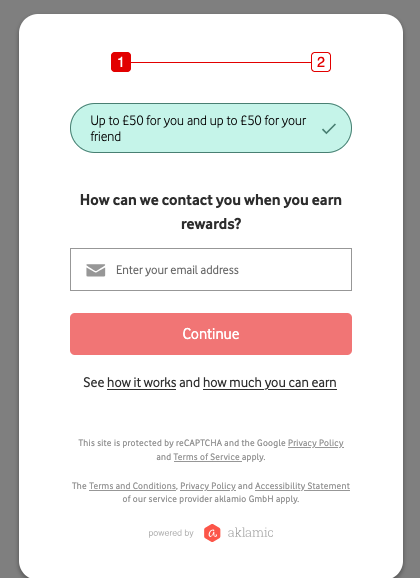
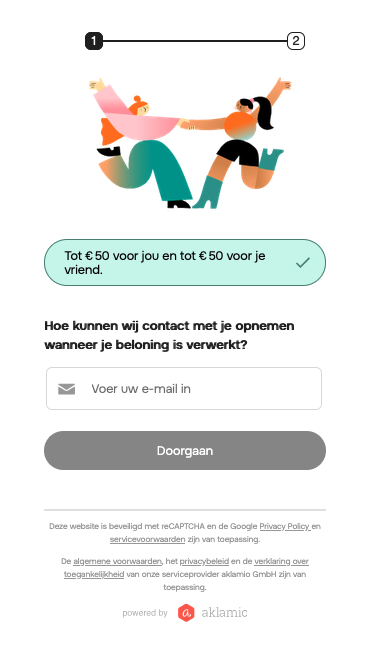
Step 1 – Sign up: The customer sees the reward offer and enters their email address. Below the button, the customer can open "How it works" and "How much you can earn" for more details. This part can be customized however. It is optional in case extra explanation might be necessary. (depends also on implemenation, see more later)
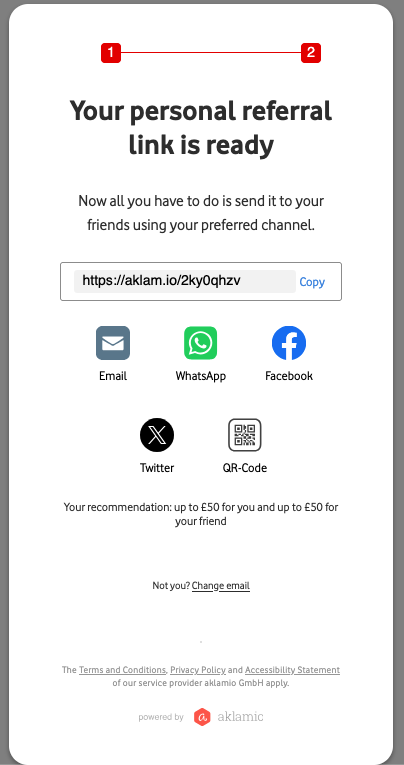
Step 2 – Share: The customer receives their personal referral link and can copy it or share it directly via email, WhatsApp, Facebook, X (Twitter) or QR code.
What's included in the standard widget
- Progress indicator (step 1 / step 2)
- Reward offer banner (e.g. "Up to £50 for you and up to £50 for your friend")
- Email input and call-to-action button
- Links to "How it works" and "How much you can earn" (rewards table)
- Personal referral link with copy button and sharing channels
- Legal footer (reCAPTCHA notice, terms and conditions, privacy policy, accessibility statement)
- Your brand colors and fonts
Design and assets
The standard widget is set up in your brand colors and fonts by Aklamio. Everything beyond the standard widget is treated as a customization. Depending on the request, customizations are done via configuration or custom CSS. Please align them with your Customer Success Manager before the technical integration.
Adding an image
You can add a header image above the reward offer.
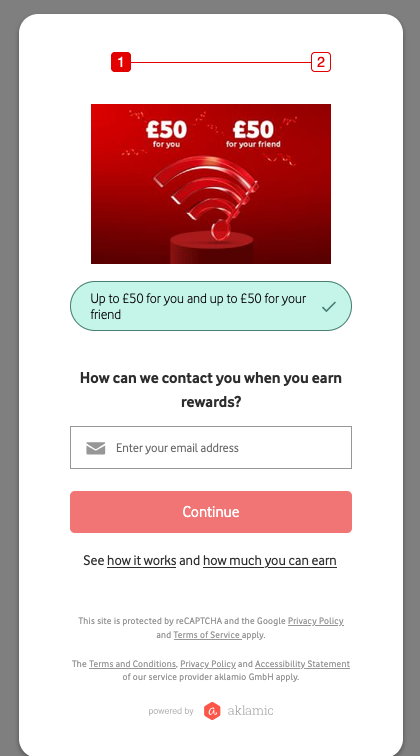
Image requirements:
- Size: 1900 × 700 px
- Format: PNG
- Recommendation: no text within the image, other than the reward (e.g. "£50 for you / £50 for your friend" / or none at all). Text in images can't be translated, isn't accessible to screen readers and may become hard to read on small screens.
Removing or amending the "How it works" link
The "How it works" link explains the referral process to your customers. It opens the same "How it works" section that is set up in your referral portal, with the same design, icons and content. You don't need to provide separate assets for the widget.
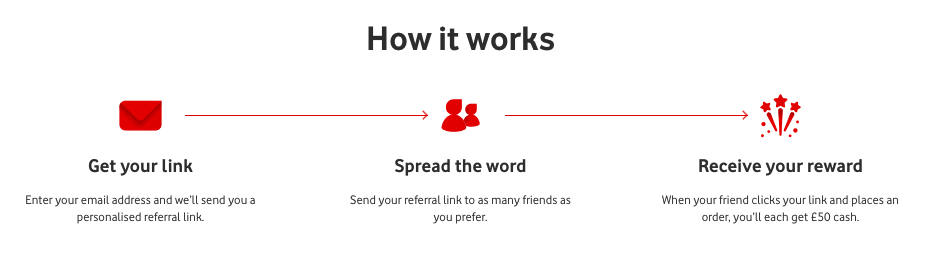
Depending on your use case, the link can be removed or its content amended. For example, if you build a landing page that already explains how the program works, the link may not be needed. It is not necessary but you might want to add it if you show this widget w/o any other context.
Removing or amending the "Rewards table" link
The "How much you can earn" link opens the rewards table with all rewards per product. Depending on your use case, this link can also be removed or its content amended, e.g. if the rewards are already shown on your page. It is not necessary but you might want to add it if you show this widget w/o any other context or if there is only single reward ammount.
Slim, mobile-optimized version
For in-app placements or mobile-first pages, a slimmer version of the widget is available. It uses a compact layout with reduced spacing, so the journey fits comfortably on small screens.
Custom styling (CSS)
If further visual changes are needed (e.g. border radius, button style, spacing), these are applied as custom CSS on the widget. Share your requirements with your Customer Success Manager.
Technical setup
The widget is added with one JavaScript file and one <div> element. The script creates an iframe inside the <div>, which loads the referral journey.
Step 1: Add the script
Add the Aklamio embed script to the <head> of the page where the widget should appear:
<script type="text/javascript" src="https://api.aklamio.com/assets/embed/1.latest/embed.min.js"></script>
Step 2: Place the widget container
Add the <div> where the widget should be displayed on the page:
<div
  data-aklamio-embed="true"
  data-uid="{{AKLAMIO_WIDGET_UID}}"
  data-width="{{WIDGET_WIDTH}}"
  data-height="{{WIDGET_HEIGHT}}">
</div>
Parameters
Parameter | Required | Description | Example |
|---|---|---|---|
| Yes | Unique identifier of your referral program's widget. Provided by your Customer Success Manager. |
|
| No | Width of the iframe. |
or
|
| No | Height of the iframe. |
|
Full example
<!DOCTYPE html>
<html lang="{{LANGUAGE_CODE}}">
<head>
  <meta charset="utf-8">
  <meta name="viewport" content="width=device-width, initial-scale=1">
  <title>{{PAGE_TITLE}}</title>

  <!-- Aklamio embed script -->
  <script type="text/javascript" src="https://api.aklamio.com/assets/embed/1.latest/embed.min.js"></script>
</head>
<body>

  <section class="{{YOUR_SECTION_CLASS}}">
    <h1>{{YOUR_HEADLINE}}</h1>
    <p>{{YOUR_INTRO_TEXT}}</p>

    <!-- Aklamio standalone widget -->
    <div
      data-aklamio-embed="true"
      data-uid="{{AKLAMIO_WIDGET_UID}}"
      data-width="100%"
      data-height="{{WIDGET_HEIGHT}}"
			data-source="{{source}}">
    </div>
  </section>

</body>
</html>
Tip: Set the container to the full width of its section and let the widget handle the layout. This keeps the widget responsive on desktop and mobile.
Content Security Policy (CSP)
If your website or app uses a Content Security Policy, allow the following Aklamio domains:
Directive | Domains |
|---|---|
|
,
|
|
|
|
|
Content-Security-Policy:
  connect-src 'self' https://api.aklamio.com https://analytics.aklamio.com;
  script-src  'self' https://api.aklamio.com;
  frame-src   'self' https://api.aklamio.com;
Testing
- Add the snippet to a staging or test page first.
- Enter a test email address and check that step 2 shows a personal referral link.
- Check the widget on desktop and mobile.
- Let your Customer Success Manager know once the widget is live, so they can verify the tracking.
FAQ
Can customers claim rewards in the standalone widget? No. The widget is only used to sign up and share the referral link. Rewards are handled through the regular Aklamio reward flow.
Can I use the standalone widget for cashback or other incentive programs? No. The standalone widget is only available for refer-a-friend programs.
Where do I get my UID? Your Customer Success / Integration Manager provides the UID for your program.
Can I place the widget on several pages? Yes. You can use the same snippet on several pages or in your app. If you want to track placements separately, please add the "data-source"