Leverage the Universal Element as an entry point to any incentive program
Why the Universal Element
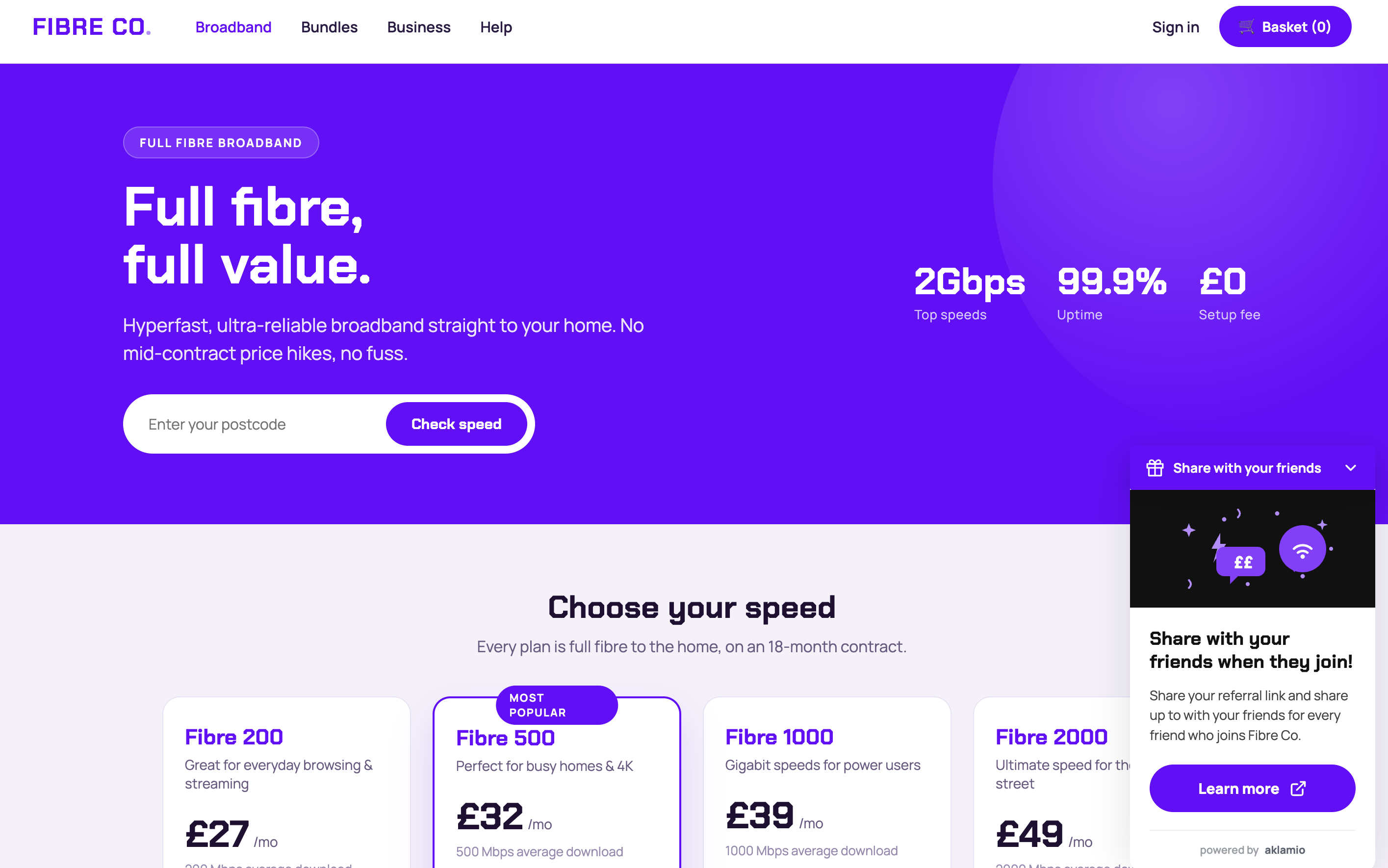
The Universal Element is a widget that adds a compact, expandable entrypoint to your incentive program from any of your web pages.
The widget is program agnostic: it supports standard referral programs, as well as, Cashback or Contract Buyout (CBO) programs. It is also embeddable on any page of your site, whether that is one page or every page, so you decide where visitors encounter it. Our widget leverages Web Components to create a custom element (aklamio-click-to-page) that accepts dynamic parameters. Upon loading, it generates an iframe containing our application and seamlessly embeds it into your host page.
Widget call to actions
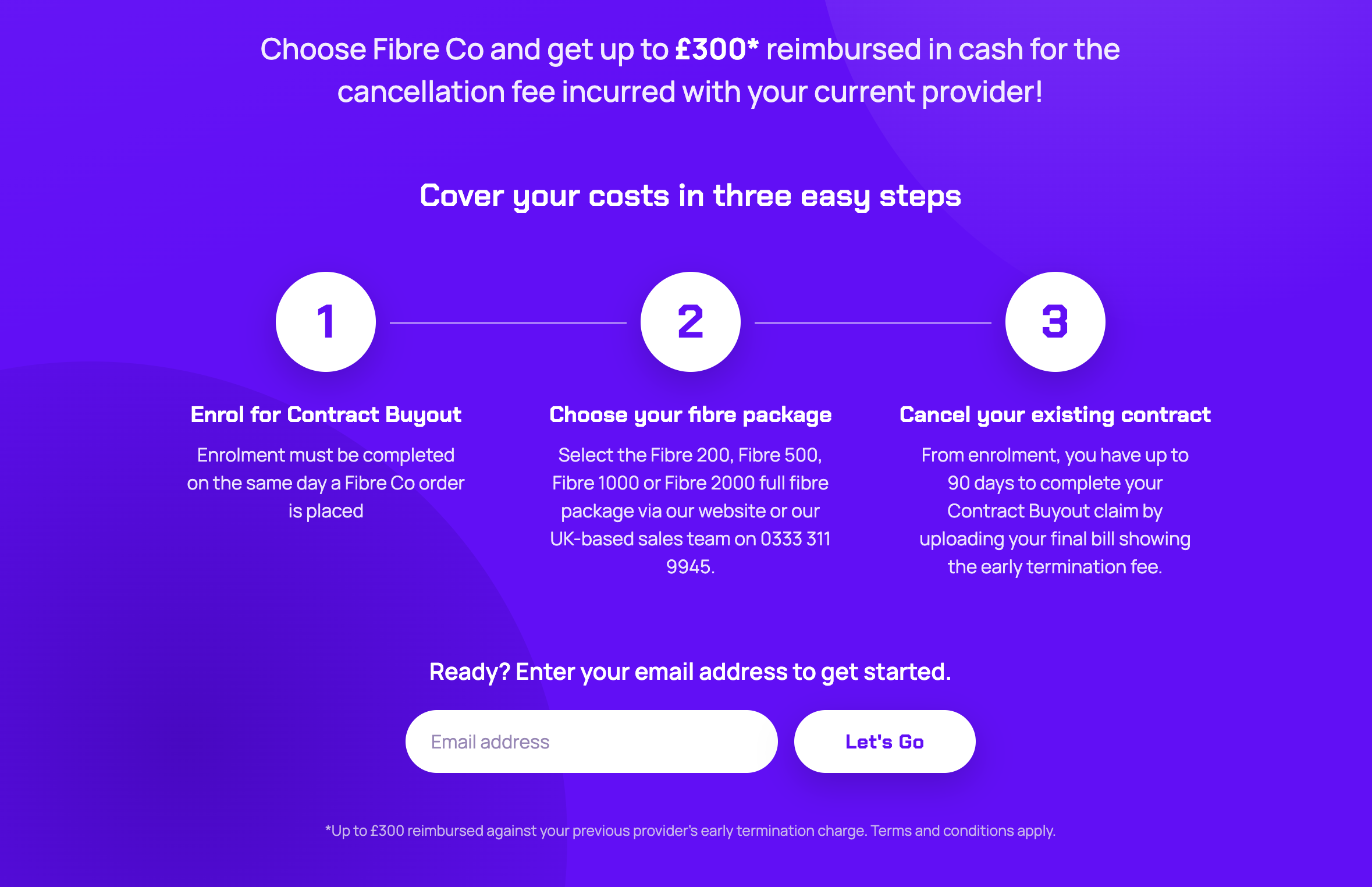
The widget's call to action behaves differently depending on your program type, these are set automatically:
- Referral programs: the call to action opens your program's landing page (typically your Aklamio portal URL) in a new tab.
- Cashback / Contract Buyout (CBO) programs: the call to action redirects the visitor into a cashback UX flow (shown below), rather than to a static landing page. This applies automatically when your program is set up as a Cashback program.
How to set up and publish a Universal Element on your website
The Universal Element is a configurable widget that promotes your program directly on your website and sends visitors to the right landing page in one click. You set it up through a guided, step-by-step flow, see exactly how it will look as you go, and control where and when it appears, without needing a developer for every change.
Before you start
- You need at least one active Aklamio Program to link the widget to.
- Make sure someone on your team can add a code snippet to your website.
Set up your Universal Element
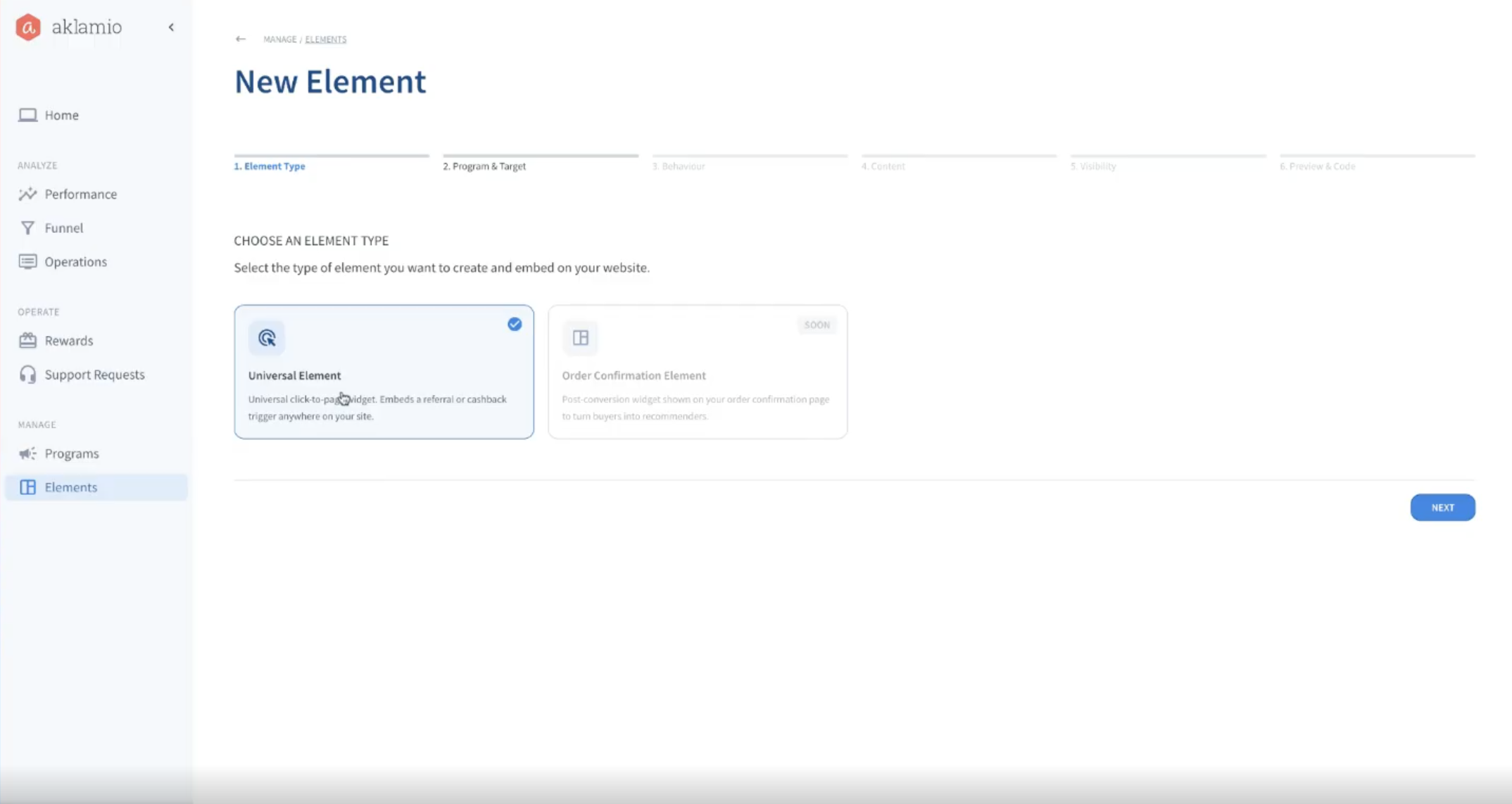
Step 1: Name the element and choose a program
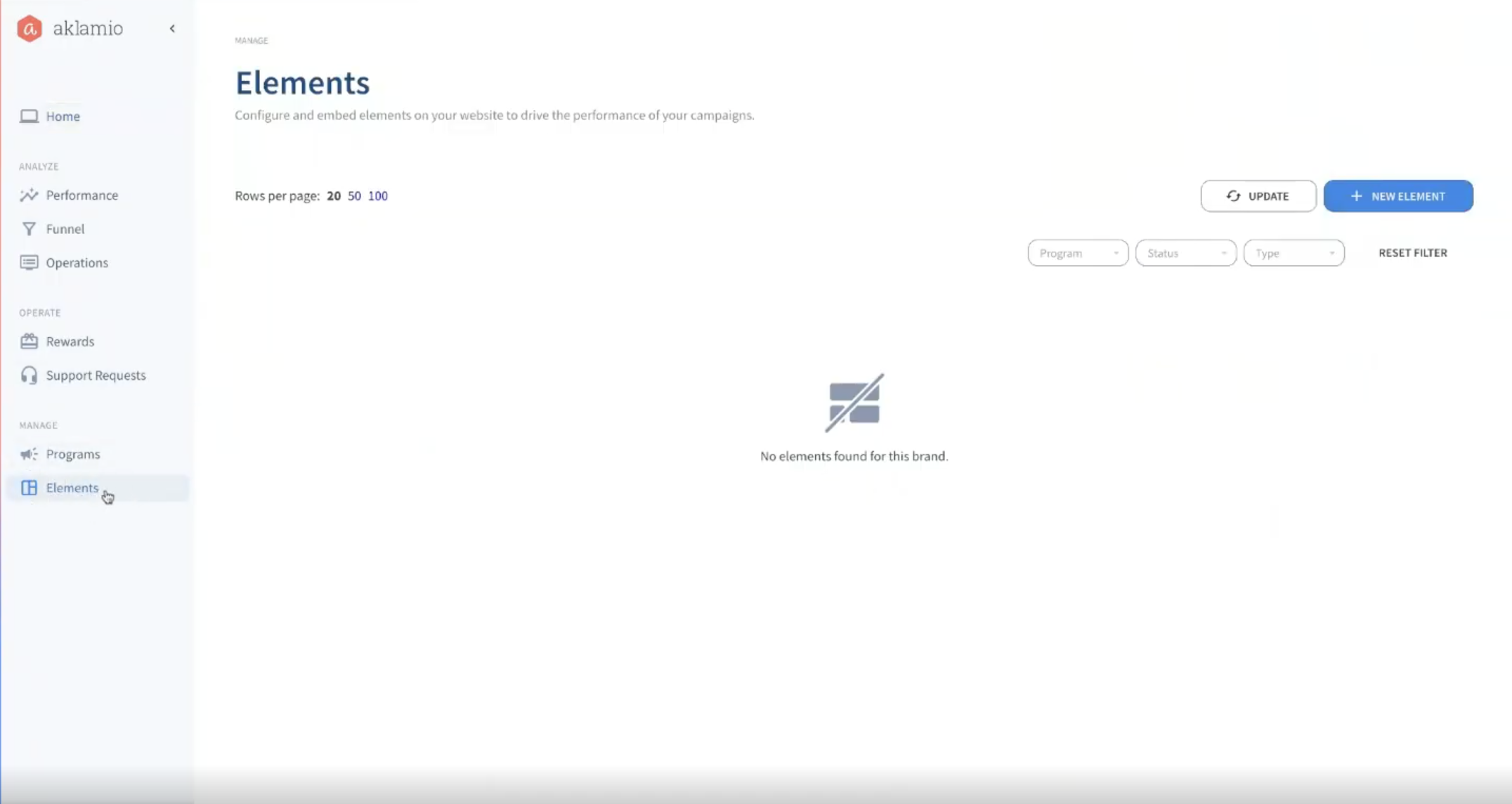
- In your PIFC navigate to the side menu and open the Elements section.
- Click Create element to start the setup flow. Then select Universal Element from the first menu and click Next.
- Enter a Name for the element, for example "Homepage referral widget". Pick a name your team will recognize in the element list.
- Select the Target program the element should promote.
Step 2: Set the target URL
By default, the element's button sends visitors to the landing page URL configured for the program you selected. Choose one of these options:
- Keep the default URL to use the program's landing page.
- Select a different program to link to that program's landing page instead.
- Override the URL to send visitors to any custom destination, such as a dedicated campaign page on your own site.
Note: For cashback elements, the target URL can't be overridden. Visitors are always taken to the cashback request journey so their request and follow-up are handled correctly.
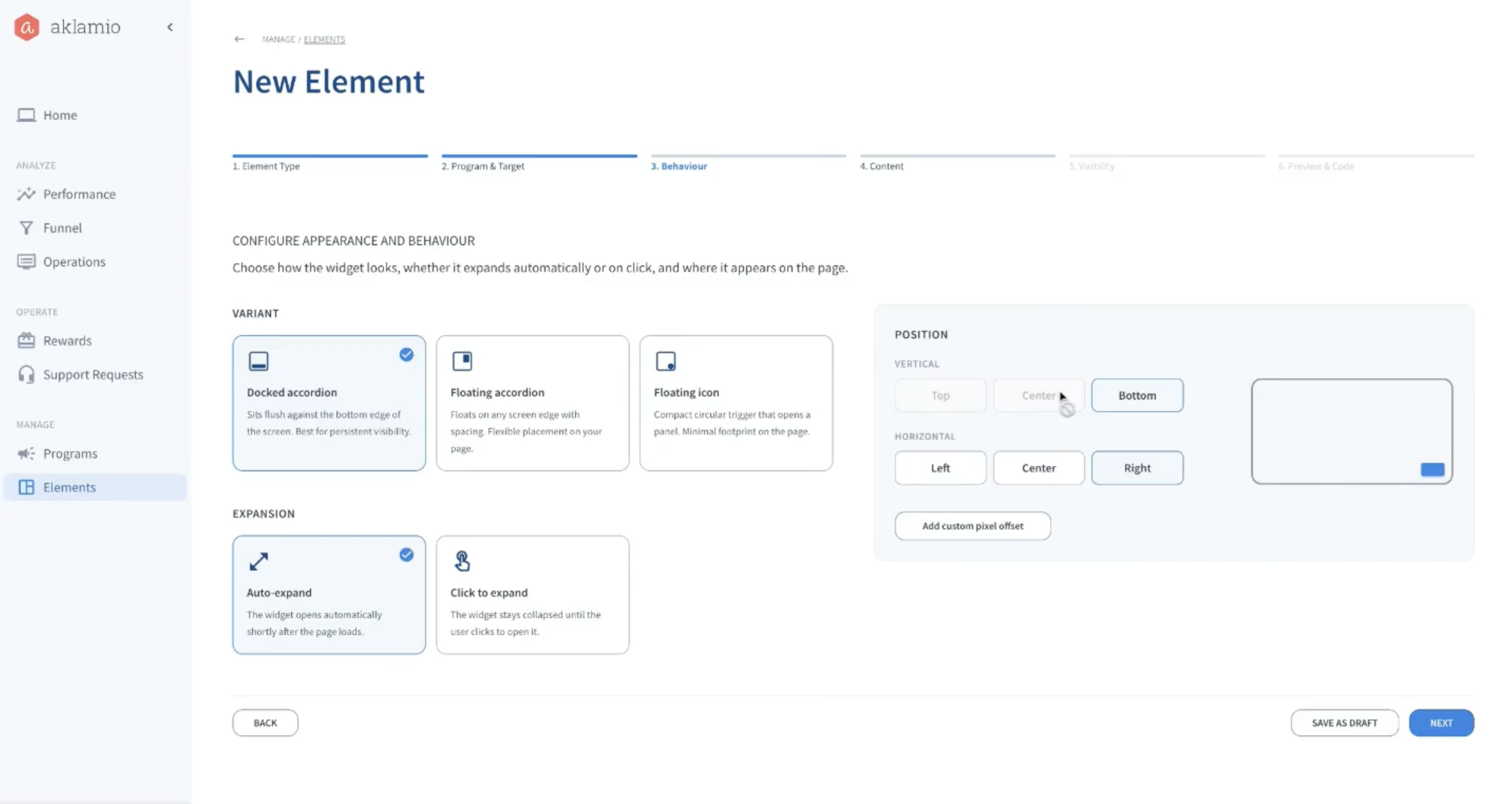
Step 3: Choose a variant and position
Select the variant that best fits your page layout:
- Docked: stays fixed at the bottom of the screen, on the right, left, or center.
- Floating accordion: a floating panel with padding and more positioning choices than the docked variant, such as top center. It includes a header title.
- Floating icon: a compact floating icon. This variant has no header title field.
Then fine-tune the placement:
- Select the Position (for example, bottom right or top center).
- Set a Horizontal offset or Vertical offset in pixels, for example 30 px. Use offsets to keep the element clear of other widgets on your page, such as a customer support chat.
- Choose the Expansion behavior:
- Auto-expand opens the element automatically when the page loads.
- Click to expand keeps it collapsed until the visitor clicks it.
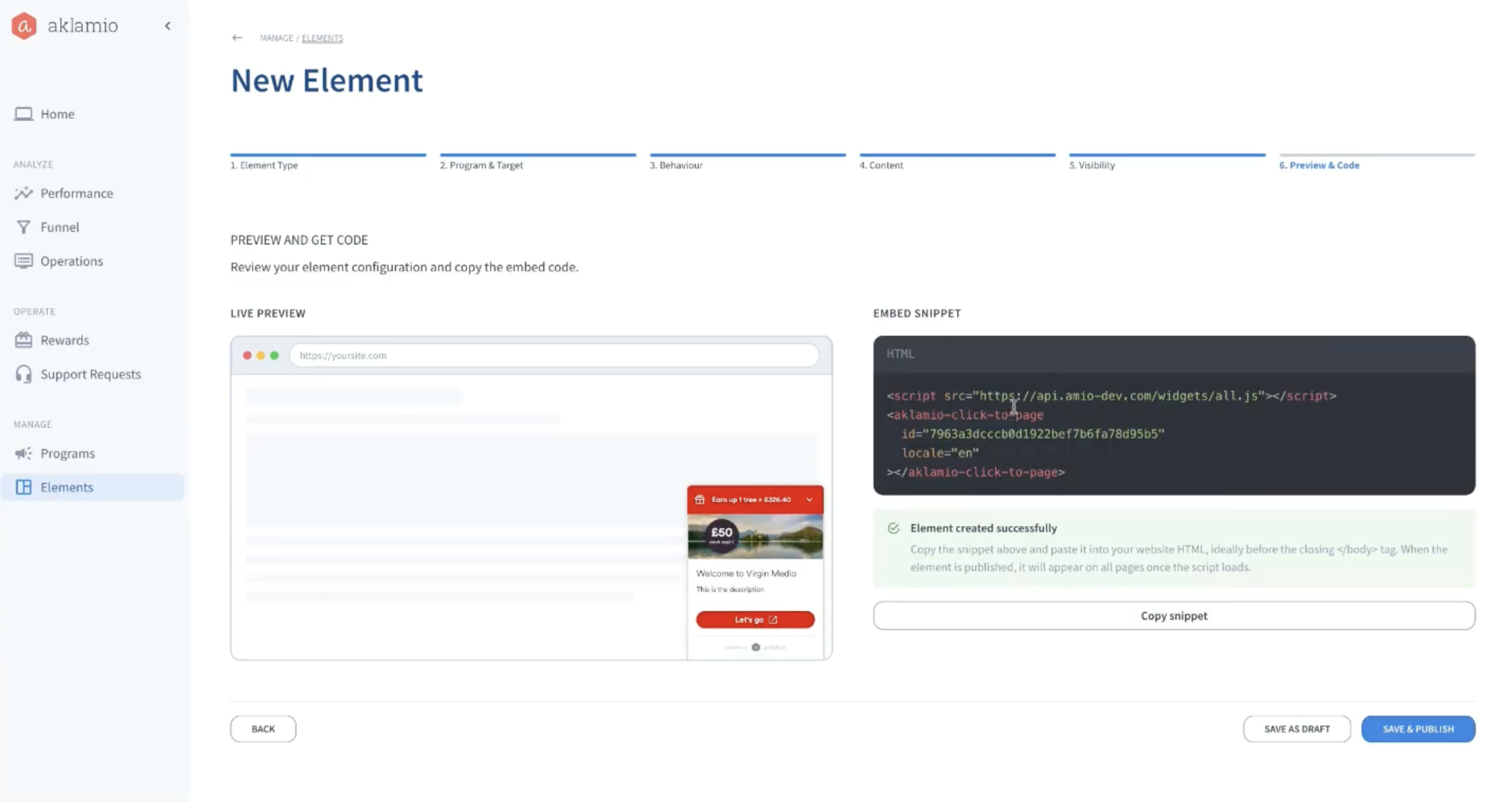
The live preview updates as soon as you change a setting, so you can see exactly how the element will render on your site.
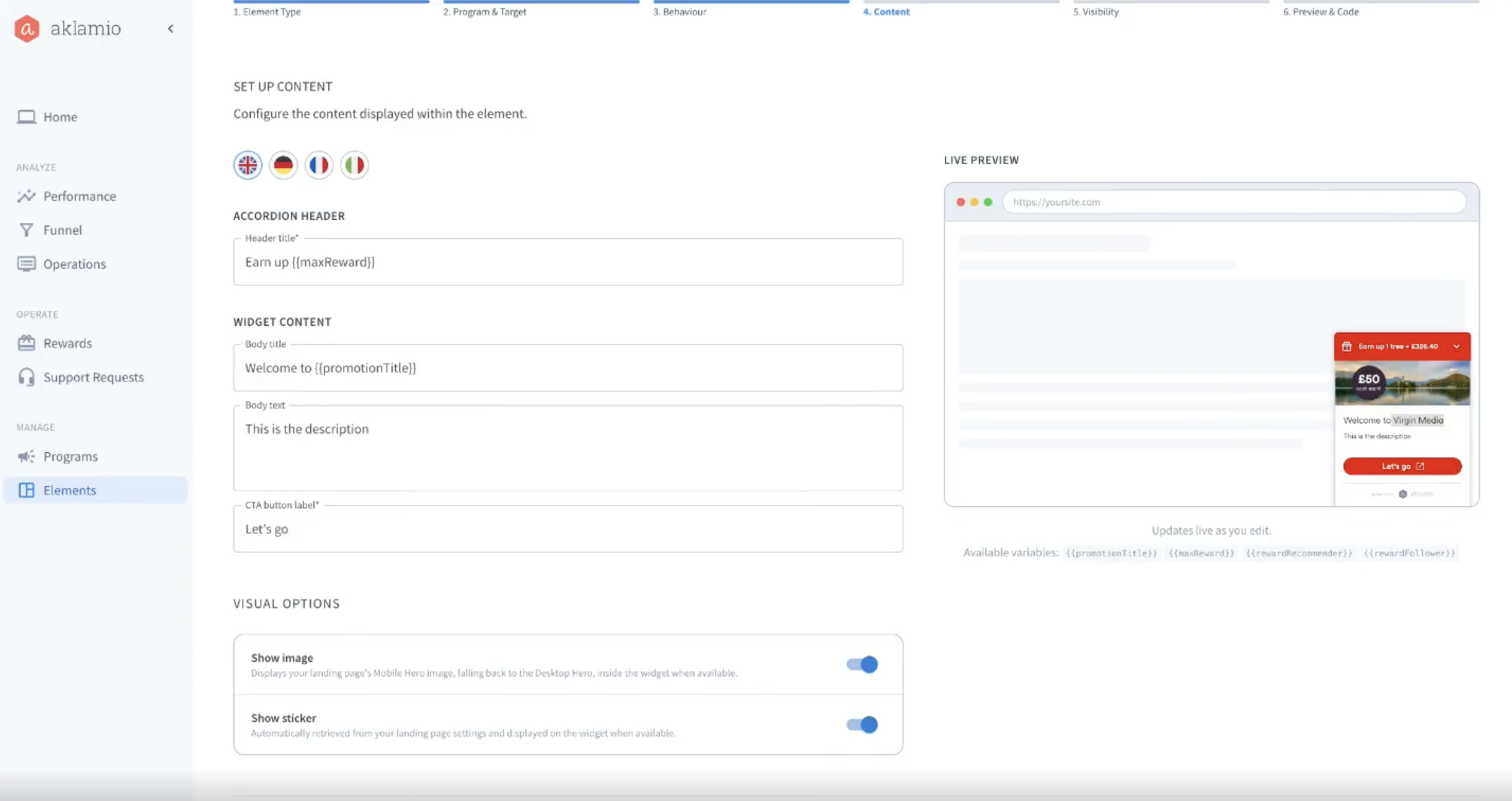
Step 4: Add your content
- Review the Language tabs. These come from the supported languages set up for your brand, and the first language in your brand settings is the default. If your brand has no languages selected yet, all languages are shown.
- Enter the Title and the Call to action text for each language. Both are required, and the live preview appears once they're filled in.
- Add a Header title if you chose the Floating accordion variant.
- Insert variables to show dynamic program details, such as the max reward or the promotion title. These update automatically, so your element always shows current values.
- Toggle Images and Stickers on or off. These are pulled from your existing content library.
Tip: If a visitor's browser uses a language you haven't set up, the element falls back to English, so it always displays correctly.
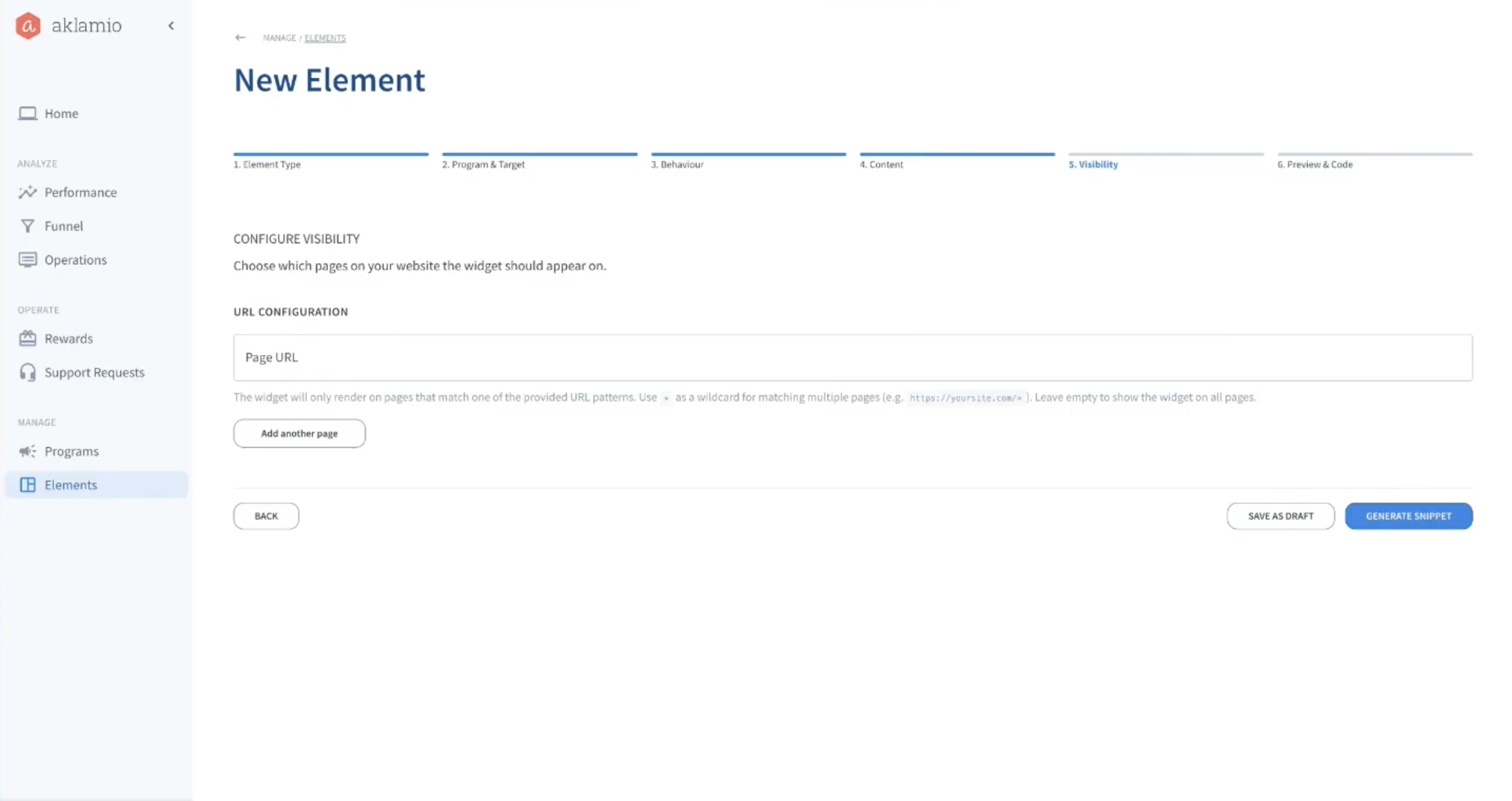
Step 5: Control where the element appears
Decide which pages should show the widget:
- Leave this step empty to show the element on every page where the code snippet is installed.
- Add specific page URLs to show it only on those pages.
- Use a wildcard (
*) to target a group of pages. For example,https://www.example.com/products/*shows the element on every product page, andhttps://staging.example.com/*targets your whole test environment.
Step 6: Generate and install the code snippet
- Click Generate Snippet. The code snippet appears.
- Copy the snippet and add it to your website, or share it with your web team.
Step 7: Publish the element
New elements start as drafts, and a draft doesn't appear on your website even after the snippet is installed.
- Click Publish to make the element live.
- Visit a page where the snippet is installed and confirm the element appears.
Manage your elements
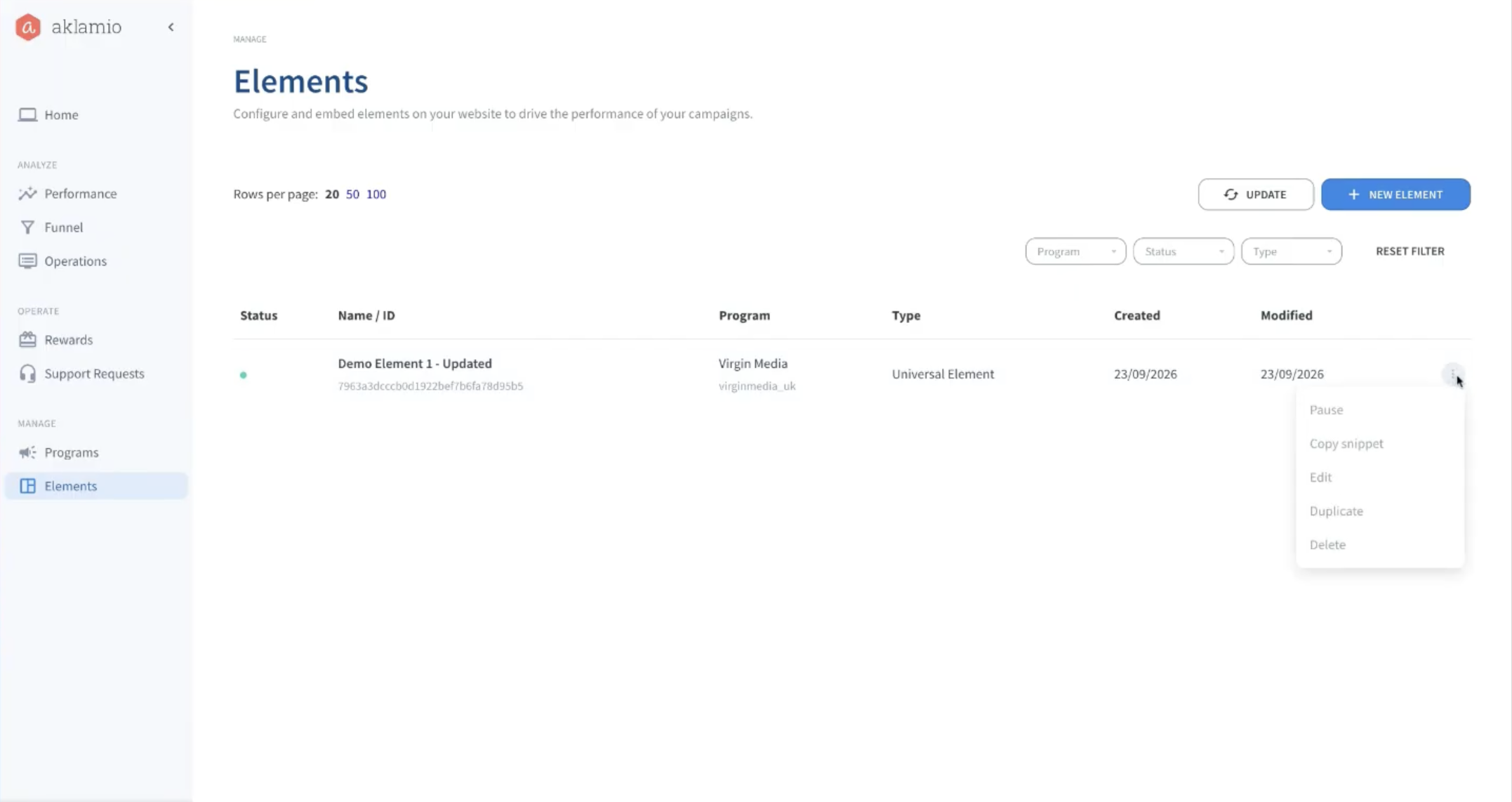
You can manage all your elements from the element list:
- Pause a live element to hide it from your website temporarily. Paused elements are shown in orange, and you can reactivate them at any time.
- Edit a live element and save it as a draft while you work. Every field that differs from the published version is highlighted, so you can review your changes before you publish them.
- Duplicate an element to create an exact copy with a new ID. This is the fastest way to create a variation, such as a different language or page placement.
- Filter the list by promotion or status to find elements quickly.
- Delete elements you no longer need.
Best practices
- Test before you go live. Use a wildcard rule for your staging or test environment first, add the snippet there to test your element, then add to your live pages.
- Mind other widgets. If your site has a chat or cookie banner in the same corner, use offsets or a different position so the element doesn't overlap it.
- Choose expansion with care. Auto-expand grabs attention on key pages like order confirmation; click to expand is less intrusive on pages where visitors are browsing.
- Duplicate instead of rebuilding. For page-specific versions, duplicate a working element and change only what you need.
- Use variables for reward details. Variables like max reward stay accurate automatically when your program changes, so you don't need to update the text by hand.
- Publish your changes. Changes made to a live element don't need new code to be added to your webpage, changes are reflected automatically on your widget via Aklmaio's API once published.
- Check your Content Security Policy (CSP), if your site has one. Your site needs to allow Aklamio's domains for the widget to load and function:
If you prefer to allow specific domains rather than a wildcard, useapi.aklamio.comandanalytics.aklamio.comforconnect-src, andapi.aklamio.comforscript-srcandframe-src. connect-src *.aklamio.comscript-src *.aklamio.comframe-src *.aklamio.com
- If you are adding the widget through a tag manager (e.g. Google Tag Manager or AWIN MasterTag), you may need to use this version. Some tag managers run on older JavaScript that does not support custom elements like
<aklamio-click-to-page>directly. Use this version instead to overcome such difficulties:<script async src="https://api.aklamio.com/widgets/click-to-page.js"></script>
<script>
var aklamioClickToPageApp = document.createElement("aklamio-click-to-page");
aklamioClickToPageApp.setAttribute("id", "<ELEMENT_ID>");
document.body.appendChild(aklamioClickToPageApp);
</script>
Your element's unique 'ID' can be found in the PIFC.

Troubleshooting and FAQ
I pasted the snippet, but the element isn't showing on my site. Why? The element is probably still a draft or is paused. Only published elements appear on your website. Open the element list, check its status, and click Publish. Also check your visibility rules: if you've added page URLs, the element only appears on pages that match them.
I edited a live element. Are my changes live already? Not until you publish them. Your changes are saved as a draft, and the published version stays live on your site. The highlighted fields show you exactly what will change when you publish.
Why can't I change the target URL on my cashback element? Cashback elements always link to the cashback request journey, so every request is captured and followed up correctly. To send visitors elsewhere, use an element linked to a different program.
Why don't I see the language I need? The available languages come from your brand settings. Add the language under Account - Brands, then return to the element to add content for it.
Why is the live preview empty? The preview appears once the required fields are filled in. Enter a Title and Call to action for the default language.
Can I upload my own images? Images and stickers currently come from your existing content library, and you can switch them on or off. Direct image upload is planned for a future release.