How to set up customer-facing content for a sales channel
Why this matters
When someone follows a referral, the Follow UX asks them how they want to go ahead: online, by calling your hotline, or by visiting an agency. Each of those options is a card, and each card is powered by one of your sales channels.
The internal name you gave a channel never appears there. What customers see is a separate set of content you configure per channel: a public title, a description, and a call to action. That content is localized.
Getting this right is also what unlocks main channel status. A channel cannot be offered as a choice in the Follow UX until its content is complete.
Our example Insurance Co. wants three options in the Follow UX: "Get a quote online", "Call our advisors", and "Find a broker near you". The third one does not need 40 sets of content. Insurance Co. creates a single Agency channel whose CTA links to its broker finder page, and configures the content once. Sales are still tracked against each individual agency channel, because attribution and customer-facing content are separate concerns.
What you configure
Field | What the customer sees |
|---|---|
Public channel title | The card heading, for example "Call our advisors". |
Channel description | The copy on the card explaining what happens next. |
CTA format | Which kind of action the button performs: Link, Email, Phone, or No CTA. |
CTA text | The label on the button, for example "Call 0800 123 456". |
CTA action | The value the button uses: a link URL, an email address, or a phone number. |
The public channel title, the channel description, the CTA text, and the CTA action value are all set per language. The CTA format is chosen once for the channel.
CTA formats
Choose the format that matches how a customer actually redeems through this channel.
Format | What happens | Typical use |
|---|---|---|
Link | The button opens the URL you configure. | Reseller booking pages, broker finders, partner microsites. |
The button opens an email to the address you configure. | Channels where redemption is handled by an inbox. | |
Phone | The button dials the number you configure. | Telesales channels, agency hotlines. |
No CTA | The card shows the public channel title and the channel description, with no button. | Channels where the description alone tells the customer what to do. |
Online channels are a special case. The journey for an Online channel is managed end to end by the Aklamio platform, so there is no CTA action for you to define. You configure the content, the public channel title and the channel description, and nothing else.
Content per reward receiver
By default, one description is shown to everyone.
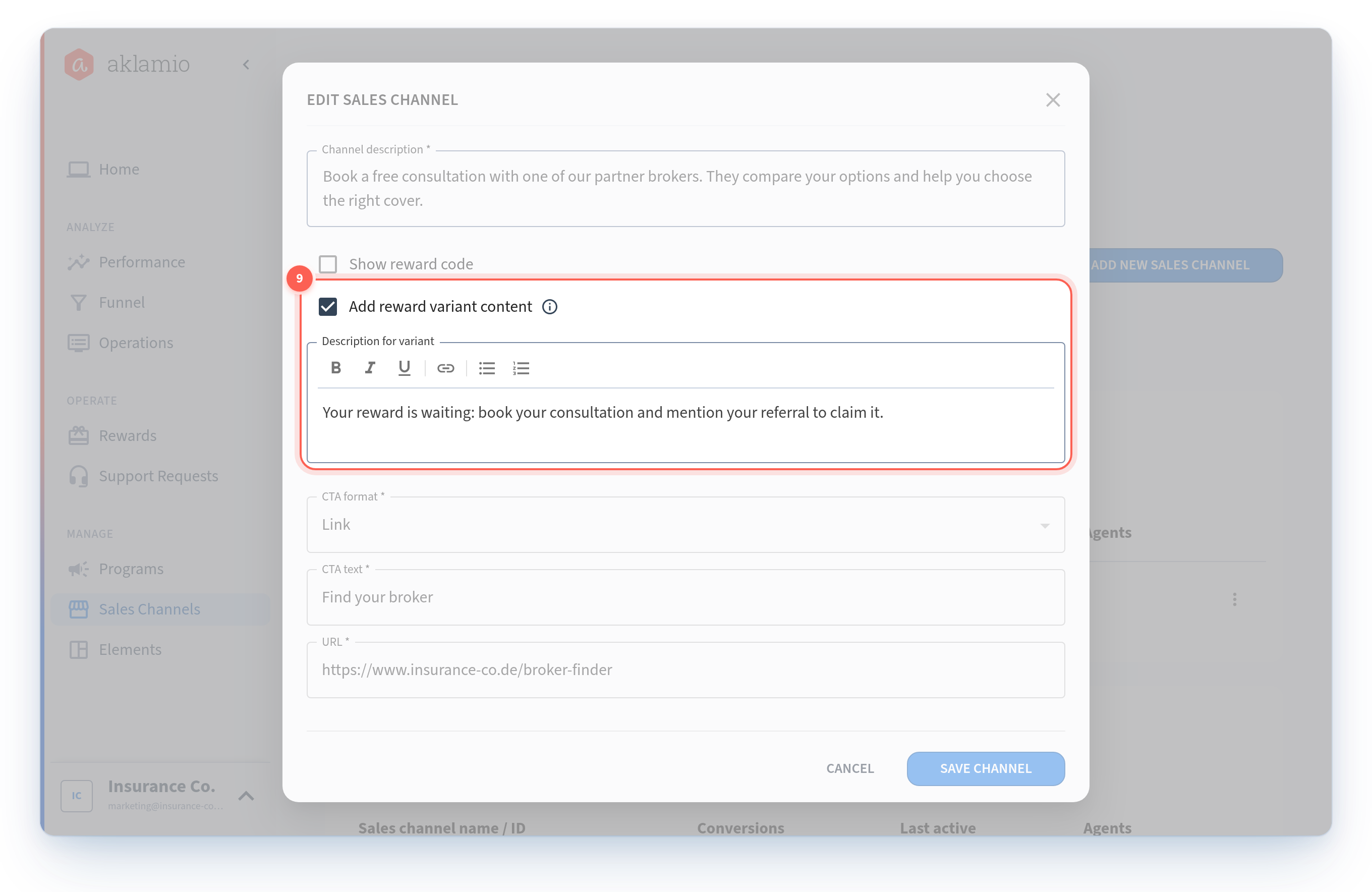
If you want to say something different to a customer who is receiving a reward than to one who is not, add reward variant content. When you do:
- the standard content is shown to customers who do not receive a reward, which is the keep case; and
- the variant content is shown to customers who will receive a reward, which covers share and give.
Leave the variant unchecked and the same text goes to everyone.
This content does not support placeholders. Write it as finished copy, not as a template with variables to be filled in.
Set up the content
- Navigate to Sales Channels. Open Manage > Sales Channels and find the channel you want to configure.
- Open the channel for editing. Use the actions menu at the end of the channel's row and select Edit.
- Go to the content section of the modal. This is where the customer-facing fields live, separate from the internal name and type.
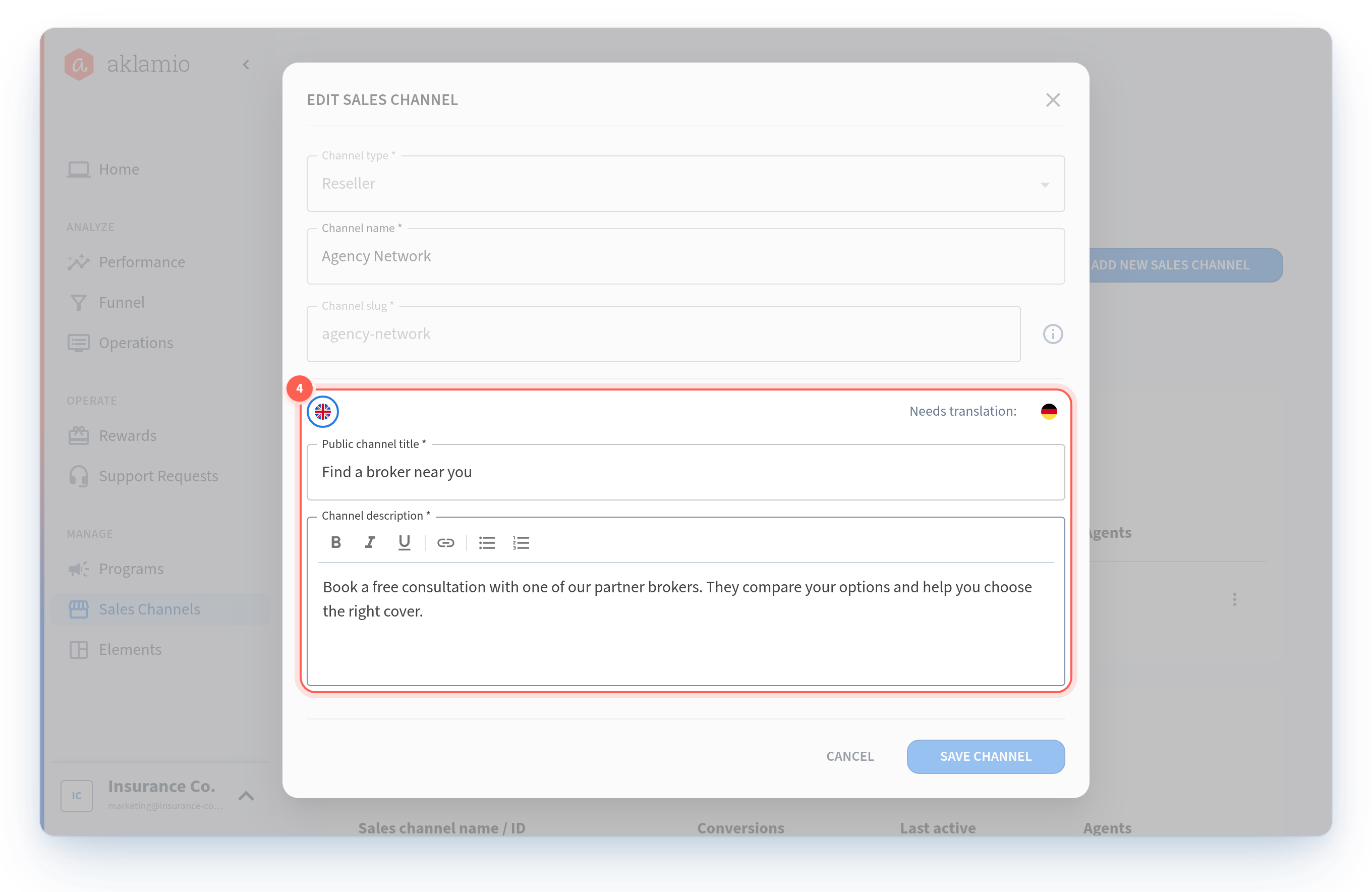
- Select the language. Start with your brand's default language. The languages available here are the ones configured for your brand.
- Enter the public channel title. This is the card heading, so write it as an instruction rather than a label. "Find a broker near you" works harder than "Reseller".
- Write the channel description. Tell the customer what happens if they choose this option. This is the standard content, shown to everyone unless you add a reward variant.
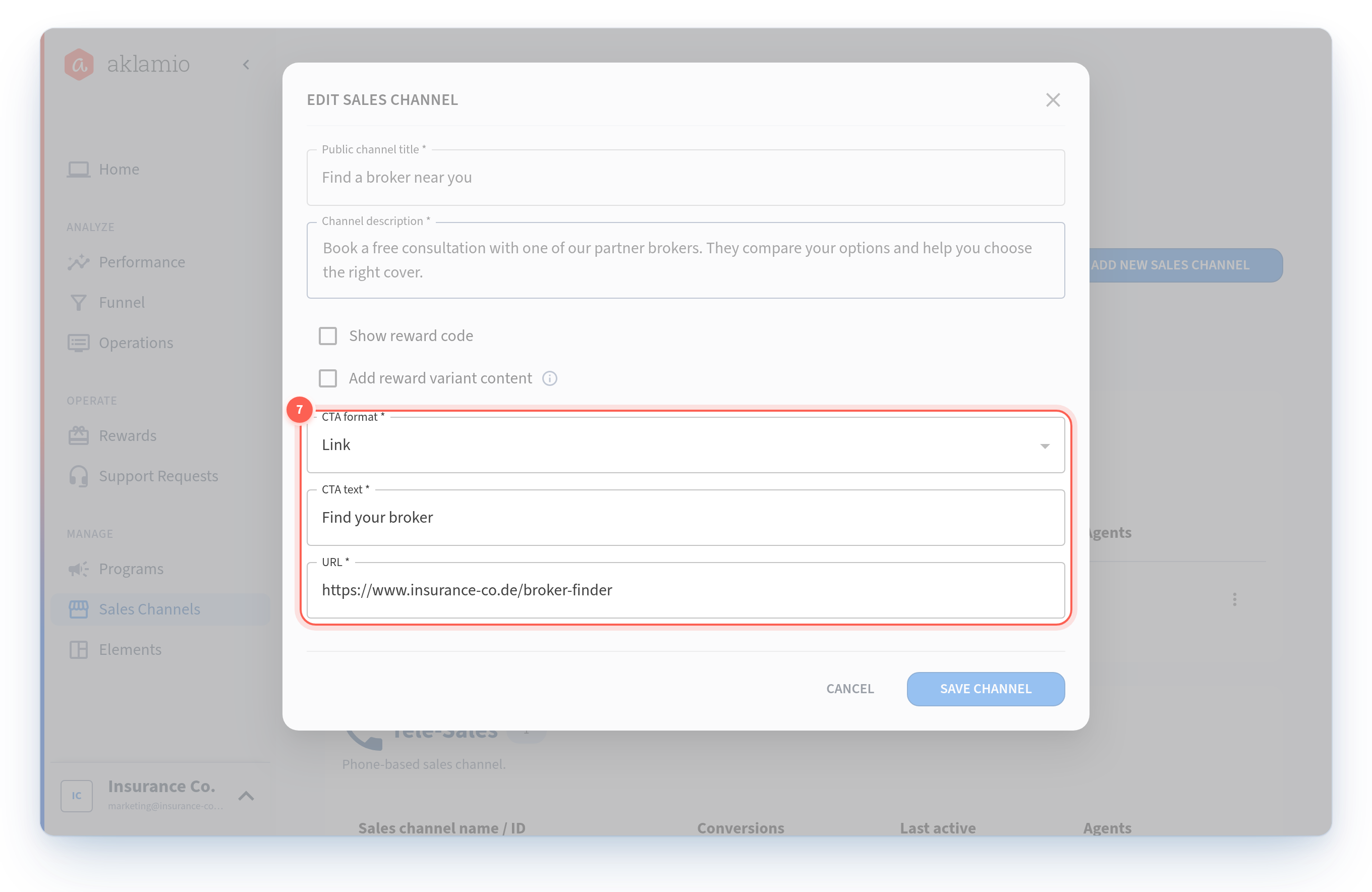
- Choose the CTA format. Pick Link, Email, or Phone, or choose No CTA if the description is the whole instruction. Skip this step for an Online channel.
- Enter the CTA text and CTA action. Keep the button label short and concrete, then supply the URL, email address, or phone number it should use. If the button dials a number, putting the number in the label reassures the customer before they tap.
- Add reward variant content if you need it. Check the variant option and write the alternative description for customers who receive a reward.
- Add other languages if you need them. Additional languages are optional, but each one you add must be complete: the same fields and the same variant setup as your default language. A half-finished translation is rejected rather than saved.
- Save. The content is live for any program where this channel is set as a main channel.
What happened to my existing content
If your brand already had customer-facing channel text configured, it was migrated into these fields for you. Your existing public titles and content came across, and the Follow UX kept working through the change.
💡 Best practices
- Complete your default language first, everywhere. It is the fallback for every other language, so one complete default language protects every card in the Follow UX.
- Write the public channel title as the customer's next action. "Call our advisors" tells someone what will happen. "Telesales" tells them what your org chart looks like.
- Match the action to the copy. If the button says "Call 0800 123 456", the format should be Phone with that exact number. Mismatches are the most common reason a customer abandons a card.
- One card can serve a whole network. A single Agency channel pointing at a broker finder is usually better than 40 near-identical cards. You still track every agency separately through its own channel.
- Review content before setting a channel as main. The platform blocks incomplete channels from becoming main channels, so doing content first saves a round trip.
🔧 Troubleshooting
I cannot set this channel as a main channel. A channel needs complete content in your brand's default language before it can be offered in the Follow UX: a public channel title and a channel description. If the channel has a CTA format other than No CTA, it also needs CTA text and a valid CTA action value. Fill in what is missing and try again.
My translation was rejected when I saved. Optional languages have to be complete. If your default language has a description plus reward variant content, an added language needs both too. Either complete the translation or remove it.
A card is missing from the Follow UX. The card's content could not be fully resolved for the customer's language. Check that the channel has complete content in your brand's default language, then check the specific language the customer was browsing in.
I do not see any CTA options for this channel. The channel is an Online channel. The journey for Online channels is managed by the Aklamio platform, so there is no action to configure. Only the content applies.
Everyone is seeing the same description, even though some customers get a reward. Reward variant content has not been added for this channel. Without it, the standard description goes to all customers. Add the variant to show different copy to customers who receive a reward.
I changed the CTA format and the change was refused. The new format was not compatible with content already saved on the channel. The change is rejected as a whole, so nothing was cleared or lost. Adjust the affected content first, then change the format.
🔗 Related articles
- How to create and manage your sales channels
- How to add sales channels to a program and set your main channels
- How to archive, reactivate, or delete a sales channel