
How to add sales channels to a program and set your main channels
Why this matters
Your sales channels are defined once for your brand. Which of them a given program actually uses is decided per program, here. This is where you say that your winter campaign runs through agencies and the hotline but not through in store, or that only three of your channels should appear as options to customers.
Two separate decisions live on this page. Including a channel makes it available to the program, so reward rules can target it and sales can be attributed to it. Setting a channel as a main channel additionally offers it to customers as a choice in the Follow UX. A channel can be included without being main, and most of them will be.
Our example Insurance Co. runs one referral program. All 40 agency channels are included, because any agency can generate a referral and each needs its own reward rule. But only three channels are main: Online, the hotline, and a single Agency channel pointing at the broker finder. Forty options to choose between would help nobody.
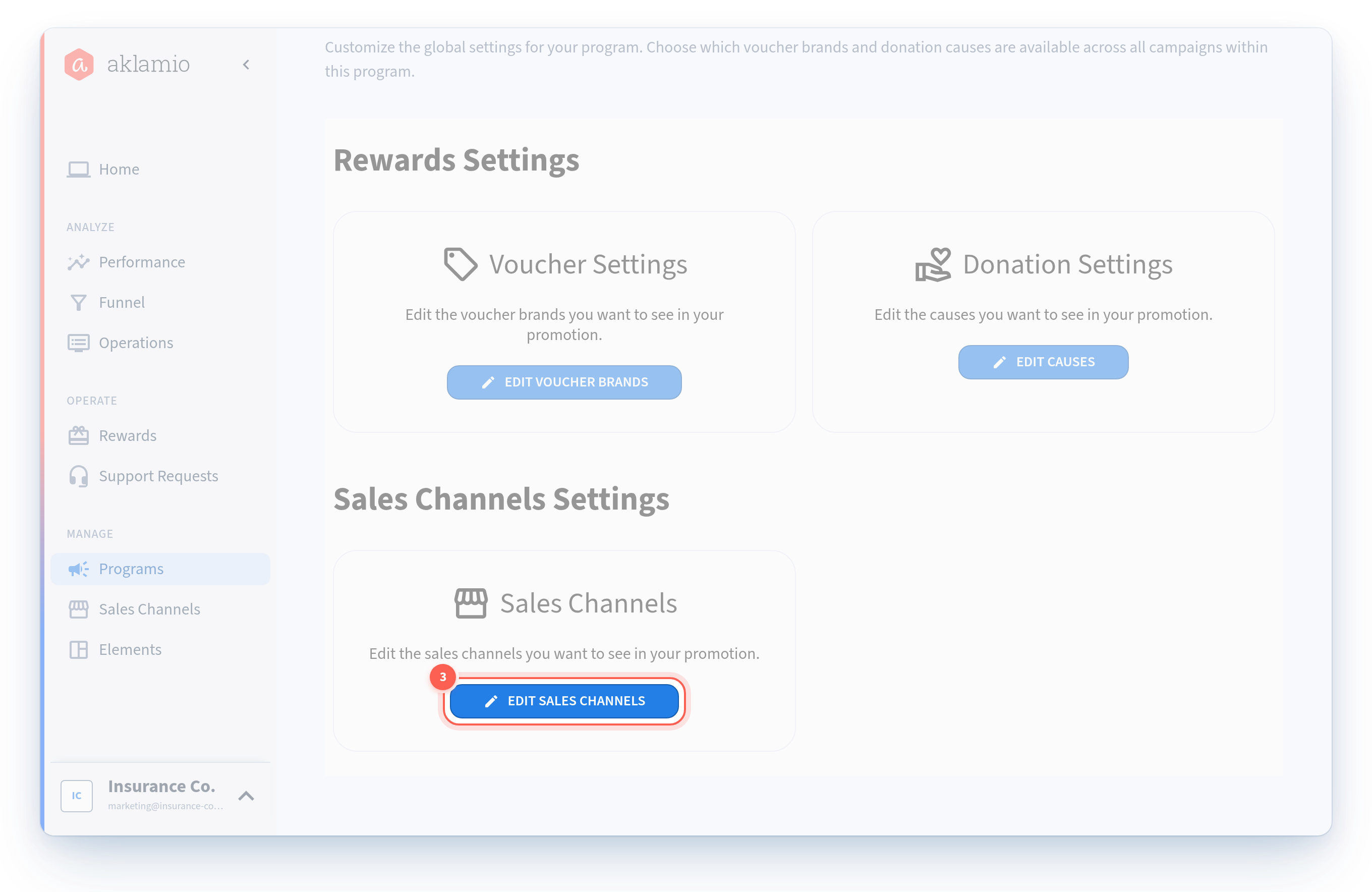
Open the sales channel settings
- Navigate to your program. Open Manage > Programs and select the program you want to configure.
- Open Program settings.
- Open Sales channels settings. The page shows two groups: Main channels at the top, and Included channels below.
Include or exclude channels
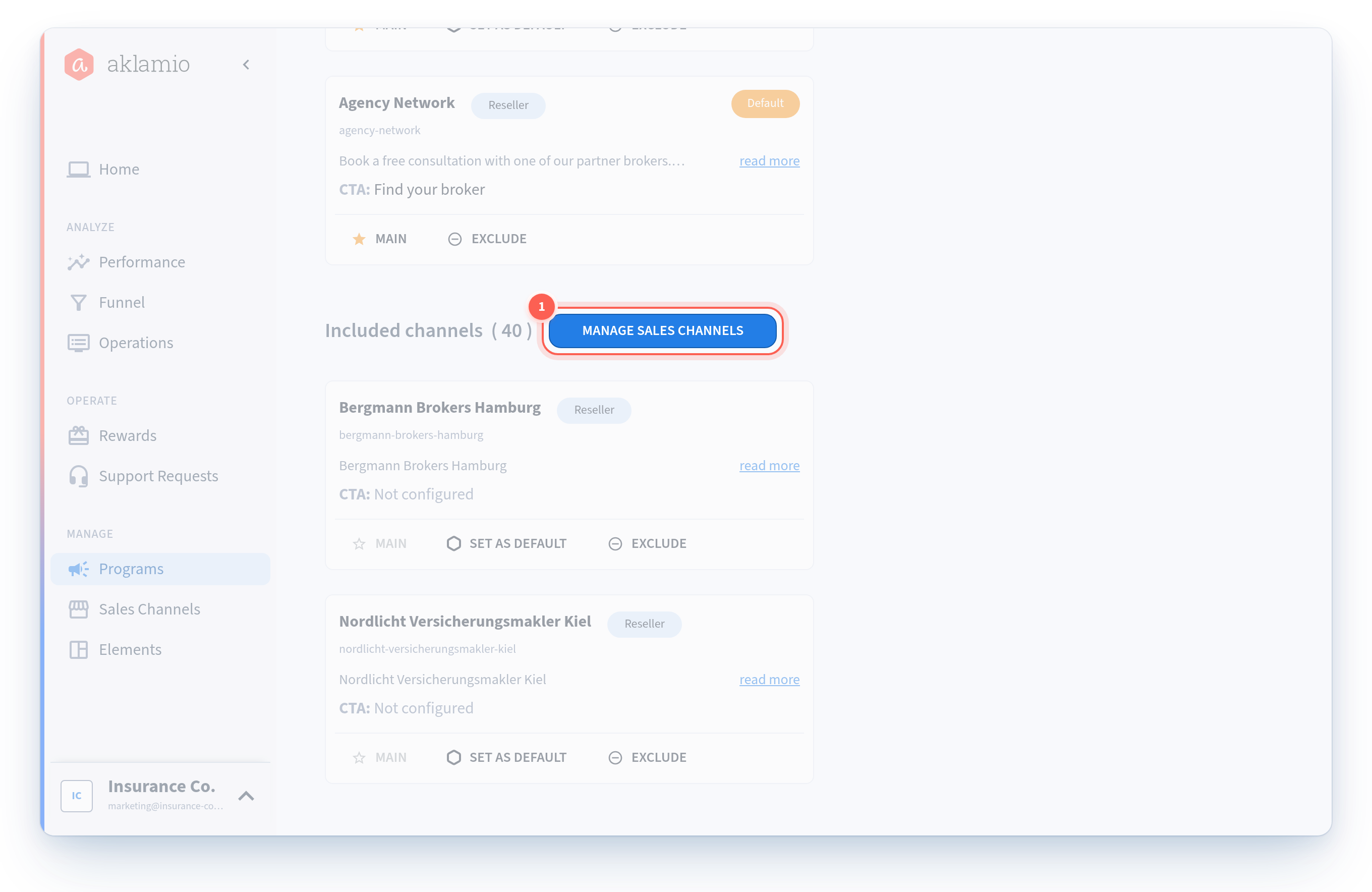
- Click Manage sales channels. The button sits next to the Included channels heading. A single list opens, showing every channel defined for your brand, both the ones currently in the program and the ones that are not.
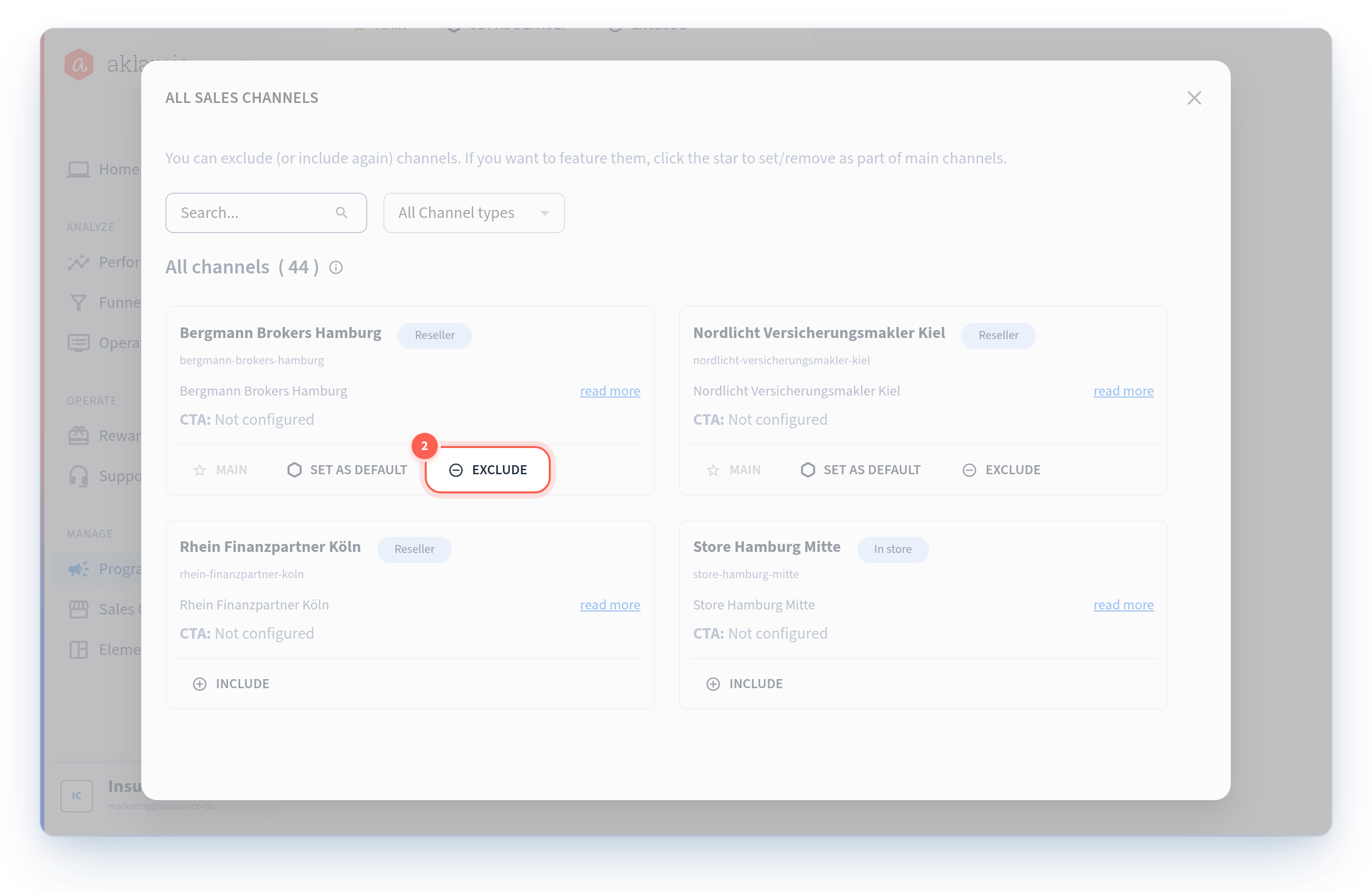
- Include or exclude channels from the list. Channels are grouped by type, so you can work through your network a type at a time. Use the search field when the list is long.
- Save your selection. Included channels appear as cards on the settings page.
- Exclude a channel directly from its card. Each card has an Exclude action, which is faster than opening the panel when you only need to remove one.
Rules worth knowing
- A new program starts with everything. When you create a program, every active channel your brand has at that moment is included automatically. You then remove what the program does not need.
- New channels are not added retroactively. A channel you create tomorrow is not added to programs that already exist. This is deliberate, so that adding an agency never changes a live program's behavior without you asking. Add it to each program that should use it.
- Only one Online channel per program. Your brand can hold more than one Online channel in its catalog, but a single program includes at most one of them.
- Archived channels cannot be included. If a channel you expect is missing from the list, check whether it has been archived.
Set the default sales channel
A program has at most one default sales channel. It is the channel used when a sale arrives without saying which channel it came from, which happens with some integrations and manual entry paths.
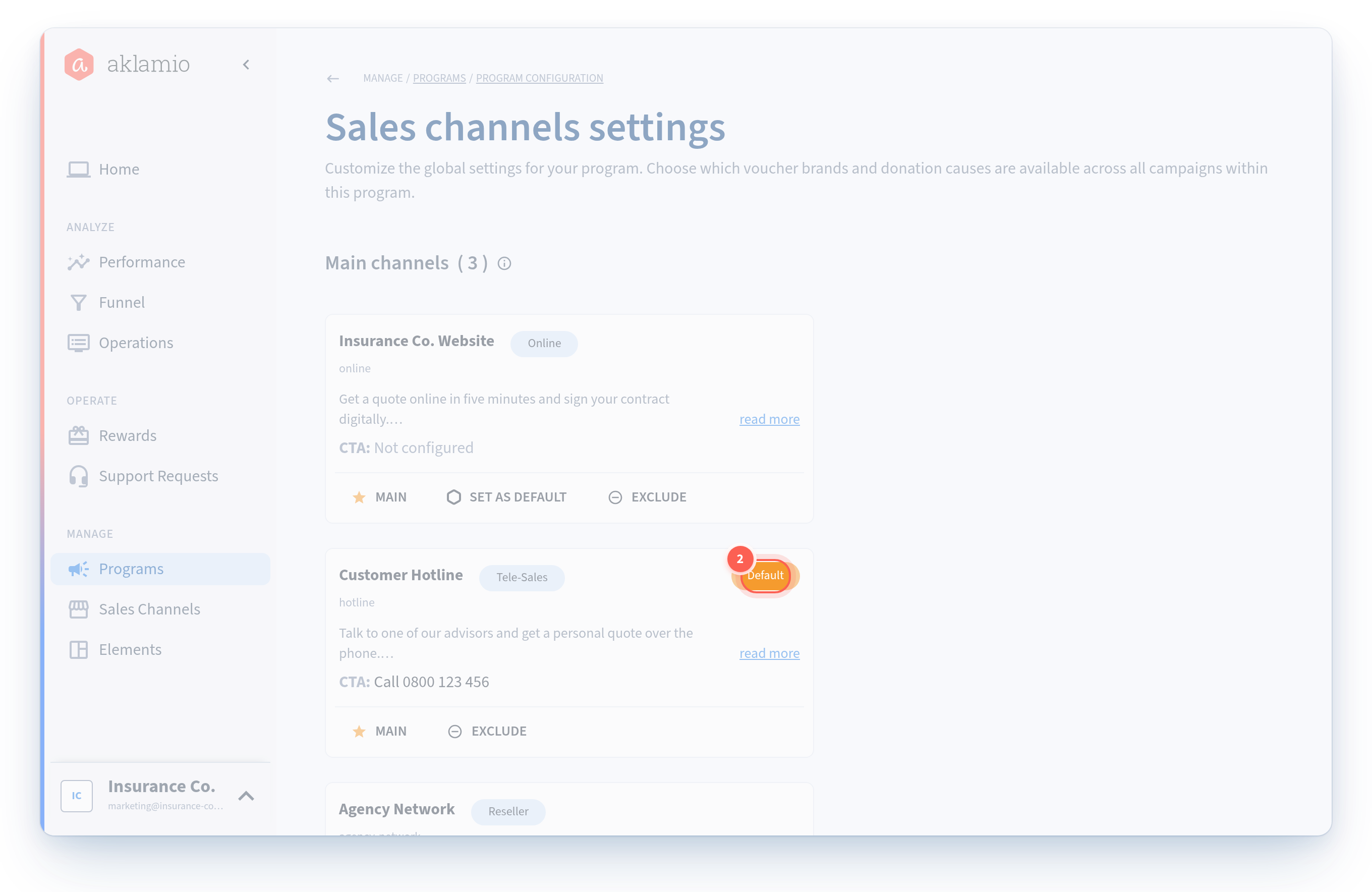
- Find the channel you want as the default. Any channel included in the program can be the default. It does not have to be one of your main channels.
- Click Set as default on its card. The card is marked with a Default badge.
The default is a fallback for missing information only. If a sale arrives naming a channel that cannot be matched, it is not quietly reassigned to your default. It is flagged as unresolved instead, so you never get silently wrong attribution. See How to target reward rules at specific sales channels for why exact attribution matters for rewarding.
Set your main channels
Main channels are the channels offered to customers as options in the Follow UX. You can have up to three, and they appear in the order you set.
- Confirm the channel's content is complete. A channel needs a public channel title and a channel description in your brand's default language, plus CTA text and a CTA action value if it uses a CTA. See How to set up customer-facing content for a sales channel.
- Click Main on the channel's card. The card moves into the Main channels group at the top of the page.
- Repeat for up to three channels.
- Check the order. The order of your main channels is the order customers see them in, so lead with the route you most want people to take.
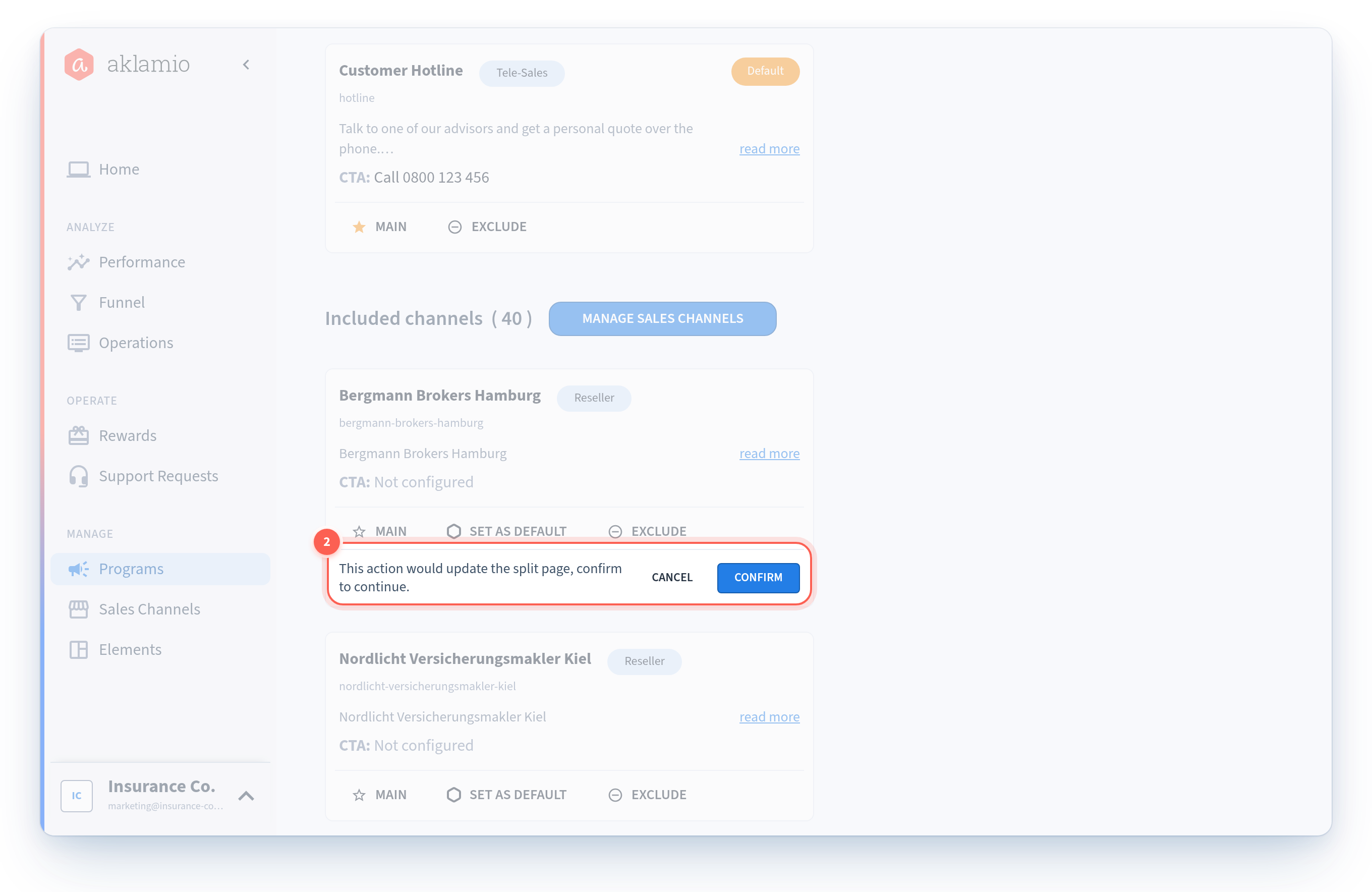
Included channels that are not main are not offered in the Follow UX. That is the normal state for most channels.
Insurance Co.'s 40 agency channels are all included, all rewardable, all reportable, and none of them is a customer-facing option.
To stop offering a channel in the Follow UX, click Main again on its card. The remaining main channels close the gap automatically, so you never end up with a blank slot in the middle.
What this means for your Backoffice agents
If your program has a Backoffice for agents to submit sales through, channel inclusion affects what those agents can see.
Each Backoffice is assigned to one specific sales channel in the program. An agent sees that Backoffice only when all of the following are true:
- the agent has permission for the program, and either a direct permission for that channel or a permission covering the whole channel type;
- the channel is included in the program's sales channel settings; and
- at least one applicable reward rule exists for it.
So a channel you exclude here disappears from your agents' view, even if their permissions are untouched. If an agent reports that a program has vanished from their dashboard, channel inclusion is the first thing to check. An agent with no applicable programs at all sees a clear empty state rather than a blank screen.
Assigning Backoffices to channels and granting agent permissions is handled by your Aklamio contact in this release. Self-service agent management arrives with Agent Management, the next phase of Advanced Sales Channels.
What happened to my existing programs
Your programs were migrated with their channel setup intact:
- Every channel your program used is still included. Nothing was dropped.
- The Follow UX kept its options. Up to three of the channels you were already offering were set as main channels for you, in a stable order.
- Your default channel was carried over from the previous setup, so sales arriving without a channel behave exactly as they did before.
- Your integrations were not affected. Migrated channels use the old channel type as their identifier, so nothing sending sales into your program needed to change.
The main thing to review is whether the automatic main channel selection matches what you would choose now, and whether the newly named channels are all included where they should be.
💡 Best practices
- Include generously, main sparingly. Inclusion costs nothing and unlocks rules, attribution, and reporting. Main channel slots are your customer's actual choice architecture, and there are only three.
- Set the default before you go live. A program without a default channel rejects sales that arrive without channel information, rather than guessing.
- Add new agencies to programs the same day you create them. The catalog and the program are separate steps, and forgetting the second is the single most common cause of "why is this agency not earning rewards".
- Order main channels by the outcome you want. The first card gets the most clicks.
- Review what depends on a channel before excluding it. Excluding affects reward rules, agent visibility, and attribution at once.
🔧 Troubleshooting
A channel I just created is not on this page. Channels created after a program exists are not added to it automatically. Open Manage sales channels and move it into the program.
The Main action is not available on a card. Either the channel's customer-facing content is incomplete for your brand's default language, or you already have three main channels. Complete the content, or remove an existing main channel first.
I cannot exclude a channel. A channel cannot be removed from a program while a current or scheduled rule plan targets it, while a Backoffice is assigned to it, or while an agent holds a direct permission for it. The message tells you which one applies. Past sales alone never block removal. Retarget or end the rule plan first, then exclude.
A second Online channel is not selectable. A program can include only one Online channel. Exclude the current one first if you are replacing it.
My agents lost access to a program. Check that their channel is still included here and that at least one reward rule applies to it. Both are required for a Backoffice to appear.
A channel is missing from the Manage sales channels list entirely. It is probably archived. Archived channels cannot be selected for programs until you reactivate them in Manage > Sales Channels.
🔗 Related articles
- How to create and manage your sales channels
- How to set up customer-facing content for a sales channel
- How to target reward rules at specific sales channels
- How to archive, reactivate, or delete a sales channel