
How to target reward rules at specific sales channels
Why this matters
Paying customers from different channels the same amount isn't always what a sales network needs. A referral through your own website costs you almost nothing to acquire. A referral through a broker agency that also earns commission is a different calculation, and a new agency you are trying to grow may deserve a launch bonus the others do not get.
Reward rules now target named sales channels. You pick the exact channels a rule applies to, which means two agencies in the same network can pay out completely differently while sitting in the same program.
Our example Insurance Co. pays a flat referral reward on its Online and hotline channels. For agency referrals it pays more, and for three newly onboarded agencies it runs a higher launch rate for the first quarter. That is three rules in one program, each targeting a different set of channels.
Before you start
A rule can only target a channel that is already included in the program. If the channel you need is missing from the rule's channel list, add it in the program's sales channel settings first. See How to add sales channels to a program and set your main channels.
Target channels in a rule
- Navigate to your program's campaign. Open Manage > Programs, select the program, then open the campaign and rule plan you are working in.
- Create or edit a rule. Click to create a rule, or open an existing one. The Create a rule wizard opens at step 1, Rule description.
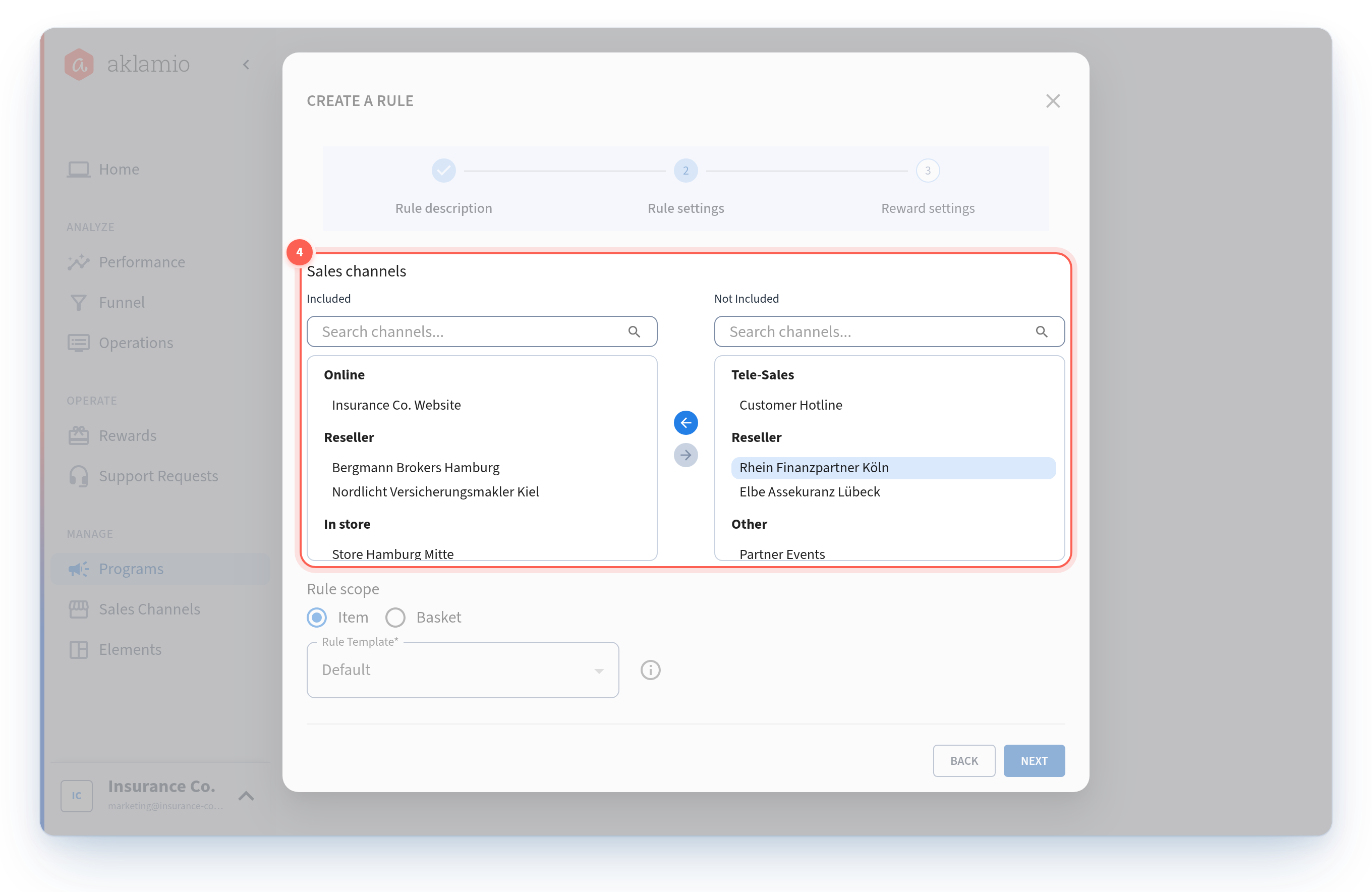
- Continue to Rule settings. Step 2 is where sales channels are chosen, at the top of the step.
- Review the two channel lists. Both lists hold channels from your program. Included on the left holds the channels this rule applies to. Not included on the right holds the program's remaining channels, which this rule does not apply to. Both lists group channels under their channel type, so you can see at a glance that
Bergmann Brokers Hamburgis a Reseller and not an In store. - Select the channels this rule applies to. Use the arrow buttons between the lists to move a channel from one to the other, and the search field above each list when you have a long network to work through.
- Configure the rest of the rule. Set the rule scope, template, and conditions as usual. These are unchanged by Advanced Sales Channels.
- Click Next to continue to Reward settings, then save the rule. The rule now applies only to the channels you left in the Included list.
How channel matching works
When a sale arrives, the platform resolves which sales channel it came from and matches it against your rules by that exact channel.
This is the part worth understanding, because it changed. Matching no longer falls back to the channel type. If a sale comes in from Bergmann Brokers Hamburg, it can only be rewarded by a rule that names Bergmann Brokers Hamburg. A rule targeting a different Reseller channel will not pick it up, even though both are Reseller channels.
That precision is the point. It is also why two things matter:
- Every channel a program rewards needs to be named on at least one rule. A channel with no rule targeting it generates sales that no rule matches.
- Rules target channels, not types. There is no "all Reseller channels" option in this release. To cover a whole network, select all of its channels in the list. The search field and type grouping make this quick.
Sales that arrive without a channel
Not every integration sends a channel with every sale. Two things can happen:
- No channel was supplied. The sale is attributed to the program's default sales channel, and rules matching that channel apply. Set a default in your program's sales channel settings so this path works.
- A channel was supplied but could not be matched. The sale is not attributed to any channel and is not rewarded. It may be retained as a closed record for you to investigate. What it is never done is reassigned to your default channel, because a silent reassignment would pay the wrong rate to the wrong partner.
If you see unresolved sales, the usual cause is an integration sending an identifier for a channel that is not included in that program.
What happened to my existing rules
Your reward rules were migrated with their targeting intact:
- Every rule kept its channels. Rules that applied to your Online, telesales, or offline setups now target the corresponding named channels, and pay out exactly as before.
- Your integrations did not change. Migrated channels use the previous channel type as their identifier, so anything already sending sales into your program keeps matching.
- Offline rules still work. You cannot create new Offline channels, but rules targeting an existing one continue to run.
The change to plan for is what happens when you add a second channel of a type you already use.
The moment Insurance Co. creates its second Reseller channel, the existing Reseller rule stops being "all resellers" and becomes a rule for one specific agency. Every new agency channel needs to be added to a rule, or it earns nothing.
💡 Best practices
- Add the channel to a rule in the same sitting you add it to the program. An included channel with no rule is a channel that quietly earns nothing, and there is no error to tell you.
- Group your network into a few rules, not forty. One rule targeting all standard agencies plus one rule for your launch cohort is easier to audit than one rule per agency.
- Use a distinct rule when the rate is genuinely different. Splitting rules by rate rather than by channel keeps your rule plan readable.
- Check your rule plans before excluding a channel from a program. A channel targeted by a current or scheduled rule plan cannot be removed from the program until the rule plan is retargeted or has ended.
- Name channels well. You are picking from this list under time pressure during a launch. Good internal names pay for themselves here.
🔧 Troubleshooting
The channel I want is not in either list. Only channels included in the program appear here, in either list. Add it in the program's sales channel settings, then reopen the rule.
Sales from a new agency are not generating rewards. The channel is almost certainly included in the program but not targeted by any rule. Open your rules and check whether the channel is in the Included list of at least one of them.
I cannot remove a channel from my program. Three things can block removal: a current or scheduled rule plan targeting the channel, a Backoffice assigned to it, or an agent holding a direct permission for it. The message names which one applies. Past sales alone never block removal.
Some sales show no sales channel at all. Those are sales that arrived naming a channel the program could not match. They are closed and not rewarded. Check what identifier your integration is sending and confirm that channel is included in the program.
I want one rule for every channel of a type. Targeting a whole channel type is not available in this release. Select the individual channels instead, using the search field and the type grouping to move through them quickly.
🔗 Related articles
- How to add sales channels to a program and set your main channels
- How to create and manage your sales channels
- How to set up customer-facing content for a sales channel
- How to archive, reactivate, or delete a sales channel